Following the decommissioning of the Payconiq brand in Belgium, these URL changes are essential to ensure compliance and mark the final phase in aligning our branding with the new Bancontact Pro identity.
Please implement adaptations described here promptly to avoid service interruptions and guarantee the continued acceptance of mobile payments via Bancontact Pay and Wero.
Changes are already available in our pre-production environement and will be rolled out in production starting 11/05/2026
Our receipt solution allows you to generate a one-time usage QR code and print it on your receipts through your cash-register (ECR) system. Your consumers scan the QR code with their preferred payment application and confirm the transaction.
The following section outlines the key steps involved in a On a Receipt payment with Bancontact Pro. The process involves several key parties, each playing a specific role in completing the transaction.
- API Key (Optional) – This is used to secure the request between the Merchant’s backend and Bancontact Pro's backend. Do not share your API keys in public areas such as online sites or client-side code.
- Merchant CallbackUrl – This URL will be called by Bancontact Pro's backend servers in order to send the status of the payment to the merchant.
- PPID or Product Profile ID – unique identifier of the product handling the payment.
The following parties participate in a On a Receipt payment with Bancontact Pro:
- Payer Application: The consumer's preferred payment app used to complete the transaction.
- Merchant Frontend: The receipt on which the QR code is printed.
- Merchant Backend: The merchant’s server-side system that integrates with Bancontact Pro.
- Bancontact Pro Backend: The backend system responsible for handling payment processing and integration services.
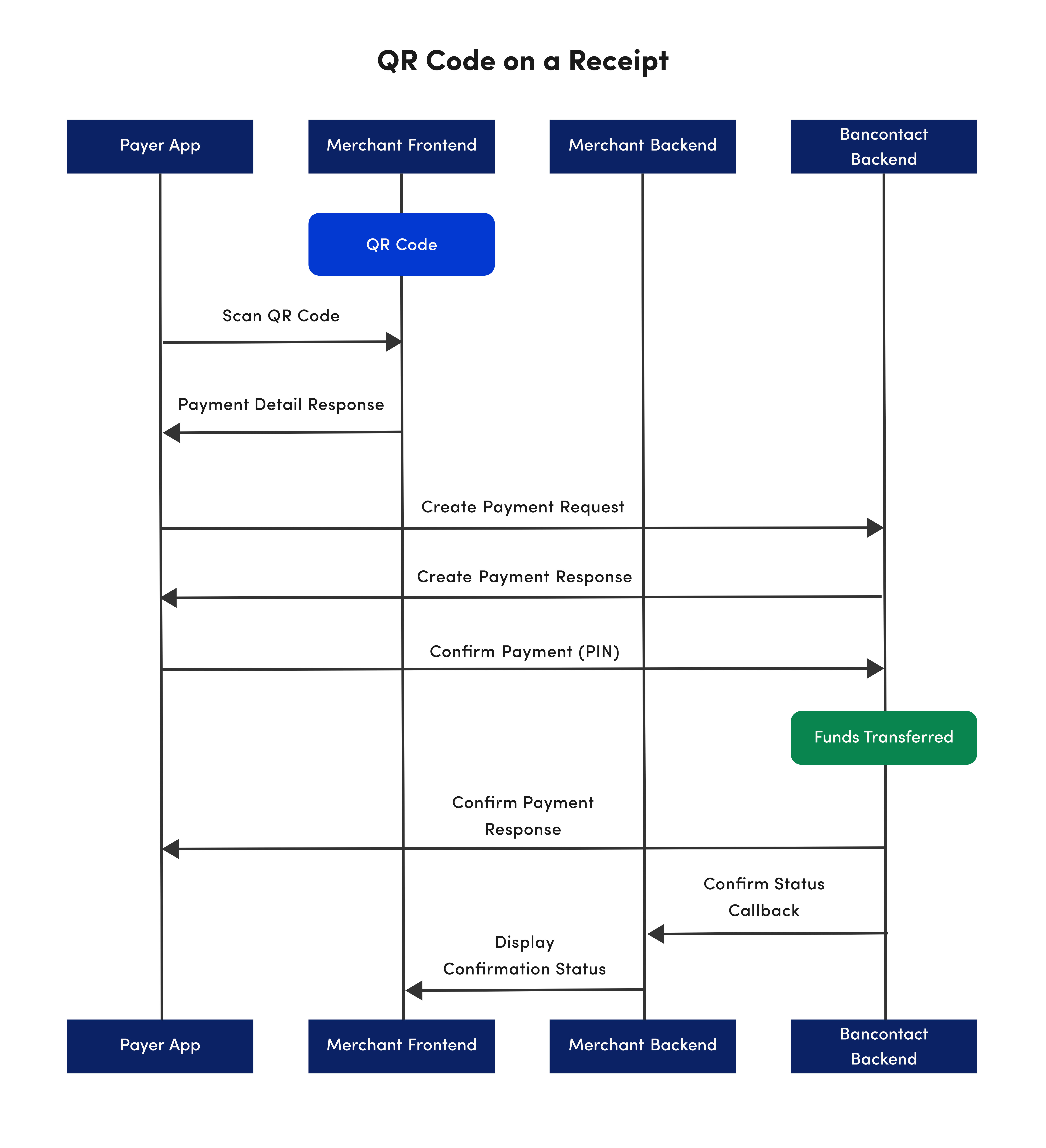
- The Merchant Backend creates a one-time usage QR code using the Bancontact Pro service URL. The QR code will contain parameters such as the amount to be paid, a dscription and a payment reference.
- The QR Code is printed on the Merchant Fronted.
- The Payer App reads the details of the QR code and presents them for payment confirmation. The details would contain the amount to pay, the merchant name and a description.
- The consumer confirms the payment in the Payer app using PIN, fingerprint, or face ID. The Payer App then submits the payment request to the Bancontact Pro Backend for authorization.
- A payment response is sent back by the Bancontact Pro backend to the Payer App, indicating whether the payment was successful or failed.
- The Bancontact Pro backend sends a payment notification with the payment status to the merchant backend via the configured callback URL.
- The merchant backend acknowledges the callback notification.
- The merchant frontend is notified of the status of the payment.
NB: The order of consumer and merchant notification is not sequential. One may arrive before the other depending on internet and network connections.
In the following diagrams you will find a visual overview of the process flows presented above:
For the full endpoint documentation, please refer to the Merchant Payment API.
In order to create a QR code you need to use the Bancontact Pro service URL as illustrated below. Once created, you will be able to print the Static QR on the medium of your choice.
The QR code contains the following parameters:
| Attribute | Description |
|---|---|
f [String :: Enum] Allowed Values: SVG, PNG | Image format. If not provided, the default format is PNG. |
s [String :: Enum] Allowed Values: S, M, L, XL | Image size of the QR code to generate. Small (S) = 180x180 Medium (M) = 250x250 Large (L) = 400x400 Extra Large (XL) = 800x800 The sizes only applies to PNG format. *If not provided, the default size is Small. |
c [String, required] | The Bancontact Pro UTF-8 URL encoded content. This is comprised of the template URL scheme. |
c.D [String, optional] Maximum Length: 35 chars | UTF-8 URL encoded description of the payment |
c.A [String, optional] Minimum: 1 Maximum: 999999 | UTF-8 URL encoded amount of the QR code in Euro cents. |
c.R [String, optional] Maximum Length: 35 chars | UTF-8 URL encoded reference of the QR code. |
IMPORTANT NOTE: The combination of amount, reference, and description should always be unique. If not, the QR code could be considered as already paid.
| Activity | Comment |
|---|---|
| 1. Obtain the pre-requisite information needed to generate the Bancontact Pro QR Code. | • Format of the Bancontact Pro QR code. • Size of the Bancontact Pro QR code. • Template URL scheme. • Product profile id of the merchant. • Amount of the Bancontact Pro QR code. • Description of the Bancontact Pro QR code. • Reference of the Bancontact Pro QR code. |
| 2. Build the Bancontact Pro service URL using the optional parameters which include: • Image format (PNG or SVG) • Image size (S, M, L, XL). This only applies to PNG. | Sample format: https://qrcodegenerator.api.bancontact.net/qrcode?f={imageFormat}&s={ImageSize}&c= Example Output URL (PNG): https://qrcodegenerator.api.bancontact.net/qrcode?f=PNG&s=L&c= Sample URL (SVG) https://qrcodegenerator.api.bancontact.net/qrcode?f=SVG&c= |
| 3. UTF-8 encode the Bancontact Pro URL payload parameter values using UTF-8 as the destination character set. This means encoding the following: • Description • Amount • Reference. | Bancontact Pro unencoded URL payload parameters D=Receipt Payment A=1000 R=sd89sd91?sd9 Bancontact Pro encoded URL payload parameters: D=Receipt%20Payment A=1000 R=sd89sd91%3Fsd9 |
| 4. Build the Bancontact Pro URL payload using the following details. • Template URL scheme. • Product profile id of the merchant. • Amount of the Bancontact Pro QR code. • Description of the Bancontact Pro QR code. • Reference of the Bancontact Pro QR code. | Sample format:https://pay.bancontact.net/t/1/{productProfileId?D={Enc_description}&A={Enc_amount}&R={Enc_reference} Sample URL payload: https://pay.bancontact.net/t/1/5c18cbd1296e9a26d3278518?D=Receipt%20Payment&A=1000&R=sd89sd91%3Fsd9 |
| 5. UTF-8 encode the Bancontact Pro URL Payload from step 4. | Bancontact Pro URL Payload before Encoding:https://pay.bancontact.net/t/1/5c18cbd1296e9a26d3278518?D=Invoice%20Payment&A=1000&R=sd89sd91%3Fsd9 Bancontact Pro URL Payload after Encoding: https%3A%2F%2Fpay.bancontact.net%2Ft%2F1%2F5c18cbd1296e9a26d3278518%3FD%3DReceipt%2520Payment%26A%3D1000%26R%3Dsd89sd91%253Fsd9 |
| 6. Build full URL by combining results from step 2 and step 5. | Sample full URL:https://qrcodegenerator.api.bancontact.net/qrcode?f=PNG&s=XL&c=https%3A%2F%2Fpay.bancontact.net%2Ft%2F1%2F5c18cbd1296e9a26d3278518%3FD%3DReceipt%2520Payment%26A%3D1000%26R%3Dsd89sd91%253Fsd9 |
You can now execute the URL in a web view to obtain your QR Code and print it on the medium of your choice.
You can specify a callback URL where the Bancontact Pro backend will send notifications about the status of a payment. This will allow you to take appropriate action and process the payment data.
The merchant backend must verify that the notification message originated from Bancontact Pro backend was not altered or corrupted during the transmission. To do so, please ensure signature validation.
For the full Callback documentation, please refer to the Callback Guide.
Bancontact Company Payment ID
Only EUR is supported currently
Requested amount in cents
Description of the payment that will be shown to the debtor, also used in the bank statement for reconciliation purposes. The characters used must comply with the SEPA Requirements for an Extended Character Set (UNICODE Subset) - Best Practices | European Payments Council.
Merchant payment reference, used to reference the Bancontact Company payment in the merchant’s system. The characters used must comply with the SEPA Requirements for an Extended Character Set (UNICODE Subset) - Best Practices | European Payments Council.
When the payment was created
When the payment is going to expire. After that date the payment can't be confirmed anymore
if the payment is SUCCEEDED, then this field represents the date-time on which the payment was SUCCEEDED
| Status | Description |
|---|---|
| PENDING | The merchant has created the payment and and is pending to proceed with identify step. |
| IDENTIFIED | The user has scanned the payment's QR code with the Bancontact Pay. |
| AUTHORIZED | The user has confirmed the payment and the bank authorized it. |
| AUTHORIZATION_FAILED | The authorization with the bank failed. |
| FAILED | Something went wrong during the payment process(e.g authorization failed). |
| SUCCEEDED | The payment has succeeded. |
| CANCELLED | When the payment has been canceled after the user has scanned it, or the merchant has cancelled the payment. |
| EXPIRED | The payment has expired. |
| PENDING_MERCHANT_ACKNOWLEDGEMENT | The payment is waiting for the merchant to acknowledge. |
| VOIDED | The payment has been voided |
Customer that paid
Debtor's IBAN masked
Debtor's first name
(No defined response schema)
- PREPROD merchant APIhttps://merchant.api.preprod.bancontact.net/callback
- PROD merchant APIhttps://merchant.api.bancontact.net/callback
- curl
- JavaScript
- Node.js
- Python
- Java
- C#
- PHP
- Go
- Ruby
- R
- Payload
curl -i -X POST \
  https://merchant.api.preprod.bancontact.net/callback \
  -H 'Content-Type: application/json' \
  -H 'Signature: YOUR_API_KEY_HERE' \
  -H 'User-Agent: Payconiq' \
  -d '{
    "paymentId": "5f91483d-78a7-4914-bc6f=",
    "currency": "EUR",
    "amount": 0,
    "description": "string",
    "reference": "19848995",
    "createdAt": "2019-08-24T14:15:22Z",
    "expireAt": "2019-08-24T14:15:22Z",
    "succeededAt": "2019-08-24T14:15:22Z",
    "status": "PENDING",
    "debtor": {
      "iban": "*************12636",
      "name": "John"
    }
}'In the event you do not receive a callback or the callback validation fails, please refer to "Get Payment Details". This alternative will also allow you to confirm the status of a transaction in order to complete the payment.
By calling this endpoint you can obtain the details of an existing payment transaction by passing the unique payment ID.
Note: it is highly recommended to implement this call as a fallback option if callback fails.
id(string, required)
id of the payment
the creation time of the payment
the time from which the payment will be expired
if the payment is SUCCEEDED, then this field represents the date-time on which the payment was SUCCEEDED
Currency code. Only EUR is supported ISO 4217
| Status | Description |
|---|---|
| PENDING | The merchant has created the payment and and is pending to proceed with identify step. |
| IDENTIFIED | The user has scanned the payment's QR code with the Bancontact Pay. |
| AUTHORIZED | The user has confirmed the payment and the bank authorized it. |
| AUTHORIZATION_FAILED | The authorization with the bank failed. |
| FAILED | Something went wrong during the payment process(e.g authorization failed). |
| SUCCEEDED | The payment has succeeded. |
| CANCELLED | When the payment has been canceled after the user has scanned it, or the merchant has cancelled the payment. |
| EXPIRED | The payment has expired. |
| PENDING_MERCHANT_ACKNOWLEDGEMENT | The payment is waiting for the merchant to acknowledge. |
| VOIDED | The payment has been voided |
Creditor account set to receive the payment
The configuration ID of the Merchant
the Id of the merchant
Merchant's company name that will be shown to the debtor
Creditor's Bank Account Iban to where the money will be sent to for this current payment
callbackUrl to which the merchant will be notified about the payment identification
callbackUrl to which the merchant will be notified about the payment payout
Amount in cents originally requested. If no amount was requested by creditor, this will be 0
merchant's description of the payment
debtor's message of the payment
Merchant payment reference, used to reference the Bancontact Company payment. The characters used must comply with the SEPA Requirements for an Extended Character Set (UNICODE Subset) - Best Practices | European Payments Council. in the merchant's system
Field used to reference a bulk batch, so the merchant can choose how to bulk the payments. Mandatory if merchant profile does have bulking enabled, otherwise will miss from the response. If it's not set in the create call it will default to the value configured in the profile if it exists, otherwise its value will be defaulted by the application.
Provides information to navigate to our REST interfaces dynamically, by including hypermedia links to them. Note that for some links inclusion depends on the status of the payment (e.g. cancel link will be available on PENDING and refund on SUCCEEDED)
| HTTP Status | Code | Meaning |
|---|---|---|
| 401 | UNAUTHORIZED | caller does not have an api-key access token |
| 403 | ACCESS_DENIED | api-key access token is invalid, creditor it's not a participant of the requested payment |
| 404 | PAYMENT_NOT_FOUND | no payment could be found |
| 500 | TECHNICAL_ERROR | Technical error in Payment service |
- PREPROD merchant APIhttps://merchant.api.preprod.bancontact.net/v3/payments/{id}
- PROD merchant APIhttps://merchant.api.bancontact.net/v3/payments/{id}
- curl
- JavaScript
- Node.js
- Python
- Java
- C#
- PHP
- Go
- Ruby
- R
- Payload
curl -i -X GET \
  'https://merchant.api.preprod.bancontact.net/v3/payments/{id}' \
-H 'Authorization: YOUR_API_KEY_HERE'You can also retrieve a list of payments by specifying how many records to return, as well as a filter on the results for the total number of records returned per page.
default is today - 1day (yesterday)
Merchant payment reference, used to reference Bancontact Company payment in merchant system. The characters used must comply with the SEPA Requirements for an Extended Character Set (UNICODE Subset) - Best Practices | European Payments Council.
Size of the elements returned in current page
Total number of pages in the backend for the list requested
Total number of elements in the list requested
Current page number
| HTTP Status | Code | Meaning |
|---|---|---|
| 401 | UNAUTHORIZED | caller does not have an api-key access token |
| 403 | ACCESS_DENIED | api-key access token is invalid, creditor it's not a participant of the requested payment |
| 500 | TECHNICAL_ERROR | Technical error in Payment service |
- PREPROD merchant APIhttps://merchant.api.preprod.bancontact.net/v3/payments/search
- PROD merchant APIhttps://merchant.api.bancontact.net/v3/payments/search
- curl
- JavaScript
- Node.js
- Python
- Java
- C#
- PHP
- Go
- Ruby
- R
- Payload
curl -i -X POST \
  'https://merchant.api.preprod.bancontact.net/v3/payments/search?page=0&size=10' \
  -H 'Authorization: YOUR_API_KEY_HERE' \
  -H 'Content-Type: application/json' \
  -d '{
    "from": "2019-08-24T14:15:22Z",
    "to": "2019-08-24T14:15:22Z",
    "paymentStatuses": [
      "PENDING"
    ],
    "reference": "19848995"
  }'